Getting started
Make your account, log in, and reset your password.
How do I...?
How do I make an account?
-
1
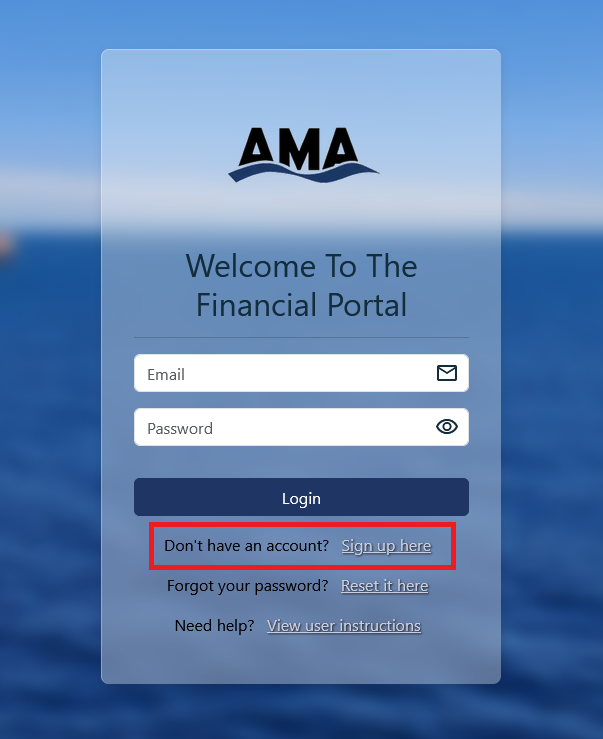
Open the portal login page.
-
2
Click , under the blue button.
-
3
Type your name, your work email and a password.

-
4
Type the password again in the box below it.
-
5
Click .
-
6
Open your email. Find the email from the portal. Look in Junk or Spam too.
-
7
Click the link in that email. Your account is now active.
Remember: Use your @andrew-moore.com email. Any other email must be approved first, and that takes longer.
How do I log in for the first time?
-
1
Put an authenticator app on your phone, for example Microsoft Authenticator or Google Authenticator.
-
2
On the login page, type your email and your password.
-
3
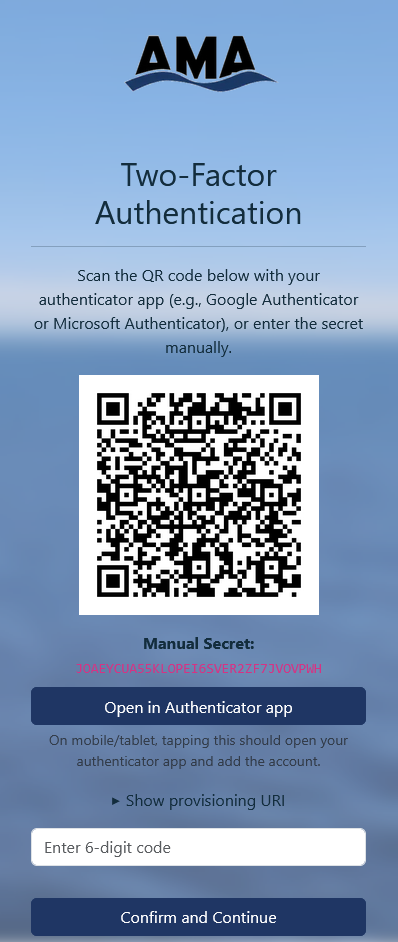
Click . A page with a square black and white code opens.
-
4
Open the authenticator app on your phone. Use it to scan the square code.
-
5
The app now shows 6 numbers. Type them in the box .
-
6
Click . You are now logged in.
Remember: On a phone, you can click instead of scanning the code.
How do I log in?
-
1
Type your email in the box.
-
2
Type your password in the box.
-
3
Click .
-
4
Open the authenticator app on your phone. Type the 6 numbers it shows.
-
5
Click .
Remember: The 6 numbers change every 30 seconds. If it says the code is wrong, type the new numbers.
I forgot my password. What do I do?
-
1
On the login page, click .
-
2
Type your email. Click .
-
3
Open your email. Click the link in the email from the portal.
-
4
Type a new password two times. Click .
-
5
Log in with your new password.
I have a new phone, or I lost my authenticator app. What do I do?
-
1
Email infodev@andrew-moore.com or ask your administrator.
-
2
Ask them to reset your two-step login.
-
3
Log in again. You will see the square code again. Scan it with your new phone.
It says my account is not active. Why?
-
1
Your account is waiting for an administrator to approve it.
-
2
This happens when you did not sign up with an @andrew-moore.com email.
-
3
Wait for the administrator. You can log in after they approve you.
Something is not working. What do I do?
-
1
Check that your internet is working.
-
2
Close the browser and open it again. Try the page again.
-
3
Try a different browser, for example Chrome or Edge.
-
4
Still not working? Email infodev@andrew-moore.com. Say what you clicked and what you saw. Add a screenshot if you can.
Remember: No internet on a job? Write your time and expenses on the paper or Excel templates. Add them to the portal when you are back online.
What is on this screen?
The login page
1
2
3
4
5
6
-
1
Email
Type your work email here. -
2
Password
Type your password here. The eye shows or hides it. -
3
Login
Click to log in. -
4
Sign up here
Make a new account. -
5
Reset it here
Make a new password if you forgot yours. -
6
View user instructions
Opens these help pages.
Still stuck? Ask AMAi, ask your manager, or email
infodev@andrew-moore.com. Tell us what you clicked and what you saw.
A screenshot helps.